May 29, 2026 · 5 min
A morning Hacker News brief on a cron
Archive. Written when meraGPT hosted Hermes Agent on managed boxes. That service ended on 2 September 2026, but Hermes is open source, so this still works if you run it yourself. What meraGPT does now.
The reason a personal agent on a real box beats one in a chat tab is that the box is awake when you are not. The CRON tab in your meraGPT dashboard is where you cash in on that. Three fields, one schedule, and your agent wakes up before you do with something useful waiting.
Here is the full setup, the form filled in with a Hacker News morning brief as the worked example. Same flow works for anything you can ask your agent to do in chat.
1. Open the CRON tab
From your agent dashboard, click CRON in the sidebar. On a fresh box you get the empty state. Hit CREATE in the top right.
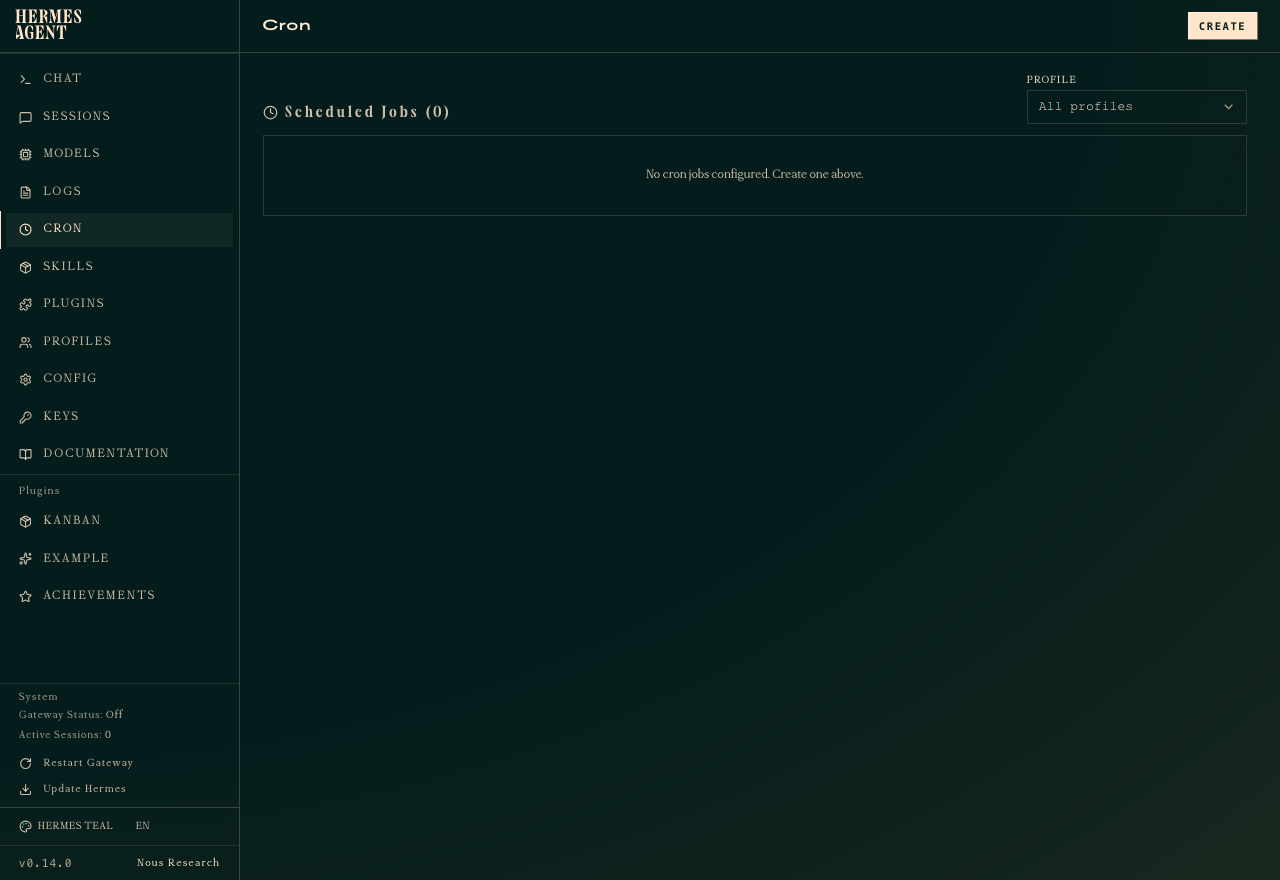
2. Fill the three fields that matter
The form is small on purpose. You get a name (so you can find the job again later), a prompt (what the agent should do), and a cron expression (when to do it). The profile and delivery target default to sensible values you can ignore for now.
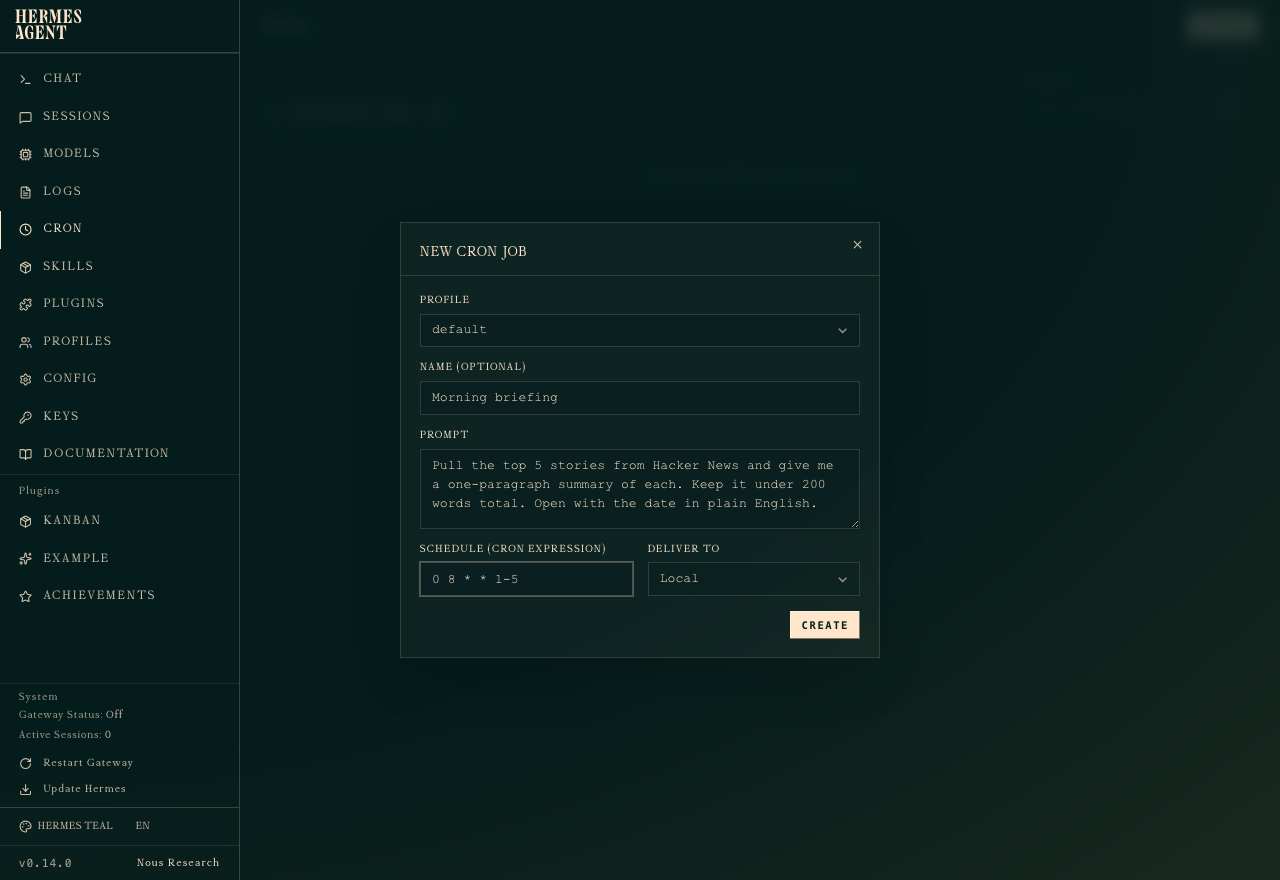
The prompt is just the message you would type in chat. No special syntax, no templates. Anything your agent can do interactively, it can do on a schedule. The example above asks for the top five Hacker News stories with one-paragraph summaries, capped at 200 words, opening with the date so you can tell yesterday’s digest from today’s at a glance.
0 8 * * 1-5 is standard cron: minute 0, hour 8, every day of month, every month, days 1 through 5 (Monday to Friday). If cron syntax is rusty, crontab.guru is the easiest way to sanity-check one. Hermes uses the box’s local timezone, which on a fresh box is UTC unless you change it under CONFIG.
3. Hit CREATE
Once you click CREATE, the job appears in the list with a green scheduled badge and the next run time already calculated. You can pause it, run it once manually (the little lightning bolt), or delete it. There’s no separate “activate” step.
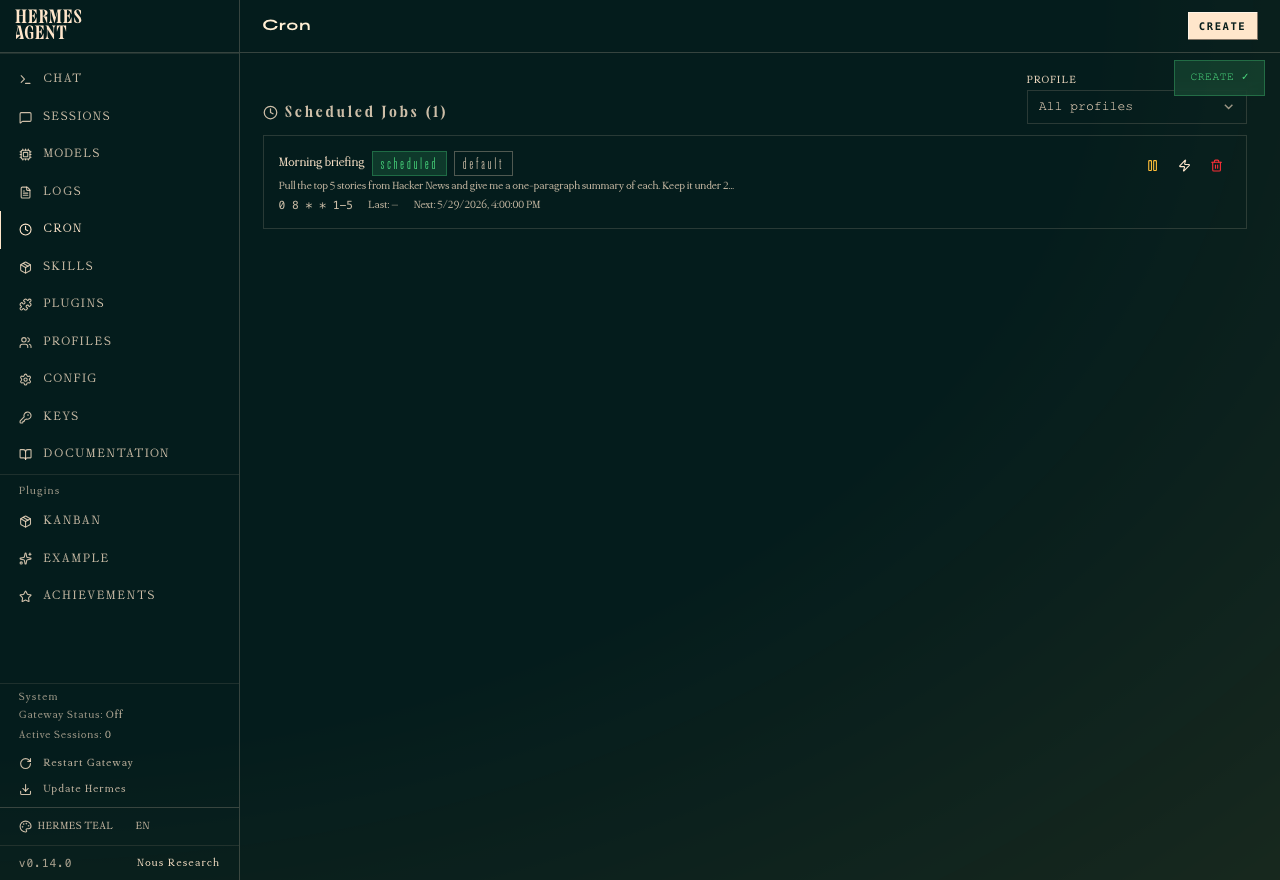
What lands the next morning
Each run shows up as a new session in the SESSIONS tab, same as any chat. You can open it, read the brief, and ask follow-up questions on the same thread. The agent remembers what it just summarised, so “dig deeper on story three” just works.
That last bit is the part people miss about scheduled tasks on a real box: they are not write-only emails. They are full sessions you can return to and continue. The morning brief becomes the start of a thread, not a one-way notification.
Where else to point this
The same form, with a different prompt, does:
- Portfolio glance: “every weekday at 9am, summarise yesterday’s close for AAPL, NVDA, SPY, and BTC. Three sentences max.”
- Calendar prep: “every weekday at 7:30am, read my Google Calendar for today and write a two-line prep note for each meeting.”
- Watcher: “every Sunday at 6pm, check if these three GitHub repos shipped a release this week.”
- Reminders that think: “every Monday and Thursday at 5pm, look at my todo list and pick the one thing I should ship before tomorrow.”
For anything that hits a private API, give the agent a tool via plugins first; see Add a Kanban board to your Hermes box in one paste for the plugin installation flow. For delivering the brief somewhere other than the dashboard, pair this with the Telegram or Slack gateway and the agent posts directly to your messages app.